|
Assuria
Auditor Information Manager
Assuria
Auditor Information Manager (AIM)
provides views of the information held in the Assuria Auditor
database.
In
the current AIM release five views are available:
-
Changes:
The Change
Detection view is designed to help monitor and detect
changes to systems in Assuria Auditor baselines.
-
Patches:
The Patches view
gives information on which patches have already been
applied, and which still need to be applied for each host.
-
Users/Groups:
The
Users / Groups
view lists the users existing on the hosts, and of which
groups they are members.
-
Packages:
The
Packages
view shows the packages which have been installed on each
host.
-
Standards:
The Standards view shows the vulnerabilities on Hosts, summarized
and grouped by
Standards.
The
Assuria Information Manager (AIM) views are designed to help you
monitor and manage hosts and is intended for security
management and for ongoing operations use.
AIM is initiated from the ‘Tools’ menu or the ICON on the
toolbar on the Assuria
Auditor Console.
Key Features of
AIM:
-
Overview of
all configured systems Changes, Patches, Users/Groups, Packages and
Standards.
-
Built-in
Search facility to quickly find key data
-
Built in
reporting for each view.
-
Integrated with Assuria Auditor Console
database
-
Rapid
identification of key information
-
Rapid access
to the details of those changes
-
Export to
Excel / clipboard. Paste to Notepad for small quick report.
The Change
Detection view in Assuria Information Manager
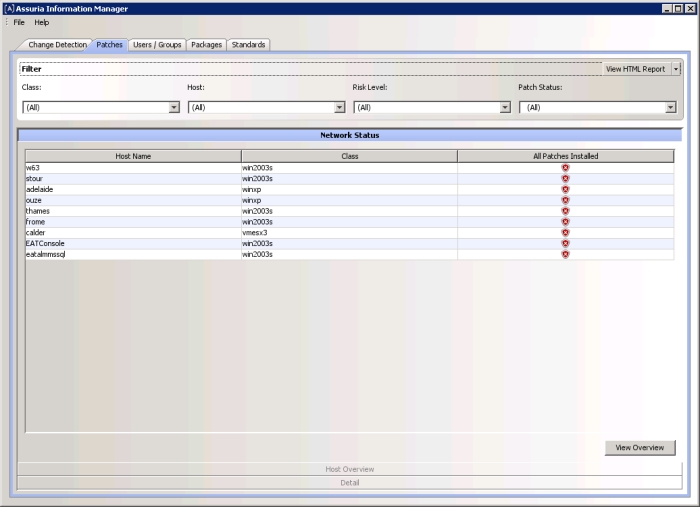
The AIM User interface is
split into 2 areas.
The upper section gives a number of filters that can be used to
select the data to be viewed.
The lower section is a series of three tabs which allow you to
view increasingly detailed levels of the detected changes;
Network Status, Agent Overview and Detail.
An overview of the type of information given on each
tab pane is below.
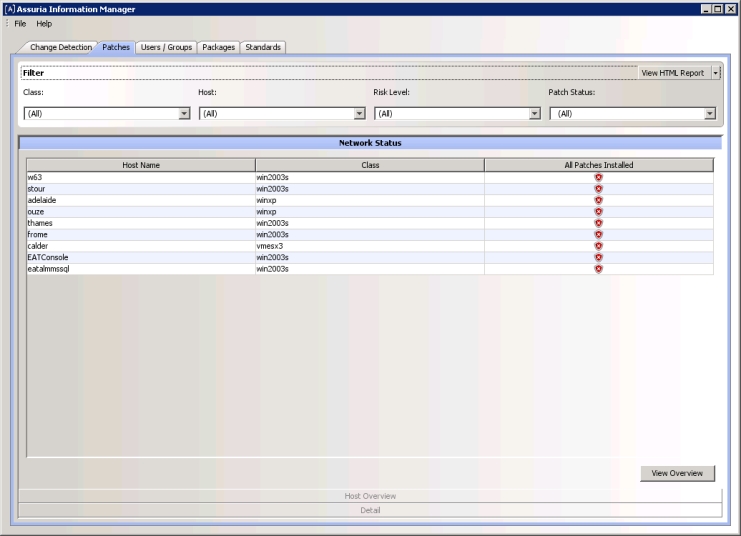
Network Status
The columns displayed will vary according to
the view selected in the Change Detection example below we can
see
‘Class’, 'Host', 'Risk level' and ‘Patch Status’. This provides an overview of each
configured agent allowing the rapid identification of agents
with all patches installed.
Agent Overview
screen
Selecting and double clicking on one of the
agents in the Network Status tab pane open the next tab pane and
displays the following screen.
This screen gives overview information about the selected agent.
Here it shows that the IBM agent ‘wear’ has changes in several
areas and the Risk Level or Severity of such changes.

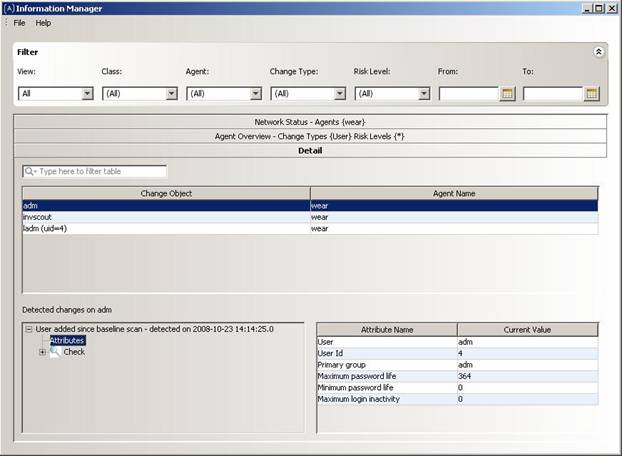
Detail screen.
The Detail screen gives two sets of
information
The detail information shown varies by object
type.
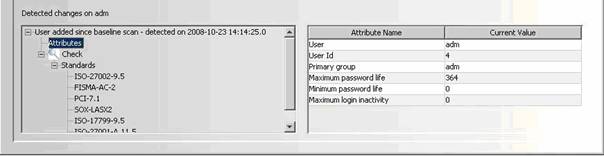
Selection again leads to more detail, as
shown below.
|